


How to Install Presets in Lightroom
In this post I am going to explain how to install presets in lightroom. Presets are one of the distinct features of Adode Photoshop Lightroom. It makes your image processing faster with just one click. Lightroom comes with a range of presets. You can make your own presets, or install presets made by others, too. Below are the steps to install your presets in lightroom. NOTE: These steps can be used to for lightroom 3 and 4.
Steps to Install Presets in Lightroom
Step 1: Open Adobe Photoshop Lightroom
Step 2: Select any photo and click on ‘Develop’ on the top right corner of the window.
Step 3: On the left panel, Right click on ‘user preset’ and click ‘import’
Step 4: You have to find the lightroom preset. The extension of a lightoom preset file is ‘lrtemplate’. Once you find a preset, click ‘open’
That’s it. You have installed a new lightroom preset. You can follow the same steps to install mutiple presets, too.
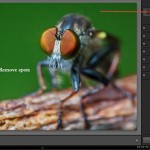
How to apply the preset: Once you install the preset, it appears on the left panel. For applying a preset, open the develop module (refer to the first picture), and simply click on the preset to apply it on the image. If you want to undo the preset action, click on ‘edit’ tab on the top, and click undo.
Download
If you have any queries, drop it as comments. And check out our lightroom presets. You can download them for free.
Related Posts
 Lightroom 4 Preset: Black and White HDR Preset
 Download free lightroom preset — Subtle Green
  Understanding Color Spaces and Color Models
 Download Free Lightroom 4 Photo Stylizer Preset
- Upgrade old lightroom catalog in 2 simple steps
 Lightroom 5 beta tutorial: Exploring New Features To Enhance Photographs

Vidhu S
Latest posts by Vidhu S (see all)
- Lens Reversal Technique for High Magnification Macro Photography — Part 2 - February 11, 2015
- Lens Reversal technique for high magnification macro photography — Part 1 - February 8, 2015
- How Kungfu Panda Teaches Composition in Photography - January 16, 2015

[…] Read: How to install presets in lightroom […]
[…] If you don’t know how to install presets in lightroom, read: How to install presets in Lightroom […]
wow, thanks for sharing, I would like to share my secret source of Lightroom presets as well.
http://www.adobelightroompresets.net
Thanks
Great Site! You can contribute Lightroom presets to our readers if you would like 🙂
HI Vidhu, thanks very much, I will start suggesting this amazing set:
http://tinyurl.com/7l9qk78
Enjoy.
Fred
Thank you so much. I have downloaded it. Can I share them in ShutterStoppers on behalf of your website?
Hi Vidhu, thanks, sure, you can but please let users download them from our facebook page.
I appreciate your interest.
Cheers