I have been using
lightroom 5 beta ever since adobe released it. Lightroom 5 beta has some awesome features that enable you to process those photographs which couldn’t be done in the previous versions. But, since it uses a new catalog, I don’t process all photos in lightroom 5 beta. I had given a brief idea about the new features of l
ightroom 5 beta in one of my previous posts.
Read
Anyway, like I said, I use lightroom 5 beta to process some photographs. And in this post, I am going to show you why and what kind of photos I process using the new lightroom.
Below, I am going to show you how I processed a macro photograph with underexposed background. During the course of this article, you will learn how to:
- Use the radial filter
- Use the crop tool
- Use the adjustment brush
- Use the spot removal tool
- Make selective adjustments in a photograph
Before and After
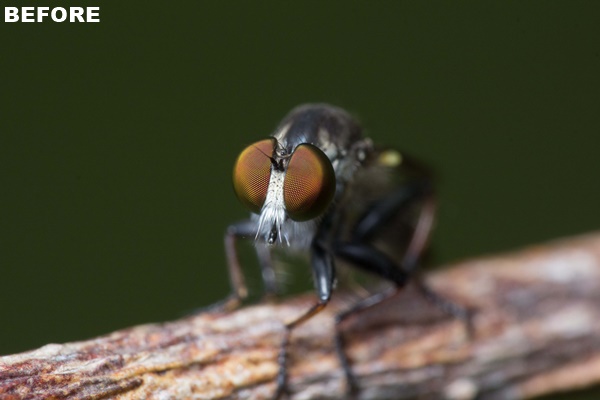
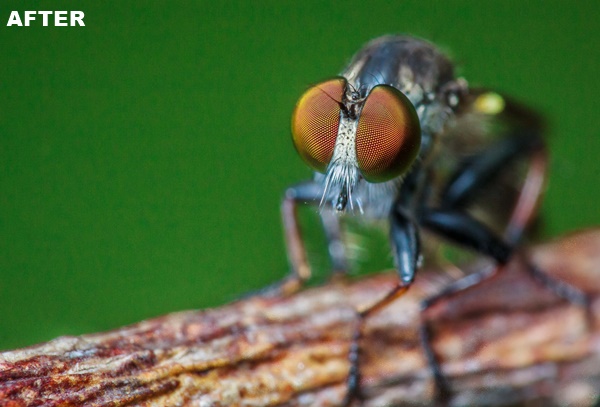
Let’s get started.
About the image: The photograph is taken with a canon 100mm macro lens with DCR 250 to get a 2.5X magnification. The aperture used here is f13 to get a proper depth of field, and I used flash to expose for the subject. Since I stopped down the aperture, the natural light was cut-off resulting in an under exposed background. However, it was not totally dark, since I used an ISO of 800 and shutter speed of 1/160s. But, still, it has to be enhanced.
Step 1: Cropping the image
As you can see, the composition of the image is not good. There is some negative space which distracts the viewer’s attention from the subject. So I used the crop tool to remove some negative space (using rule of thirds) and to increase the magnification.
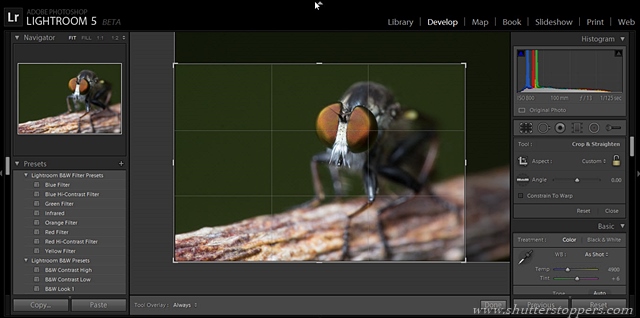
I cropped the image using the rule of thirds to improve the composition and increase the magnification slightly
Note: Cropping is not a good idea if your image resolution is low. If you are cropping a low resolution image, the quality will be reduced by accentuating the noise. The photograph I am using here is taken from a 18MP camera (canon 60D) so there will be a minimal reduction in quality after cropping.
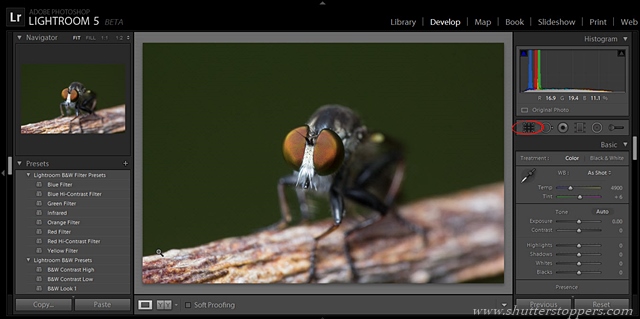
Now the photograph looks better with regard to the composition. In the next step, I made some adjustments in the basic panel.
Step 2: Global adjustments in basic panel
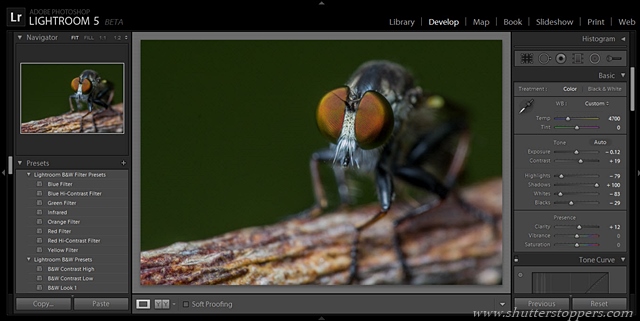
Applied global adjustments using the basic panel
I slightly reduced the exposure since there were some over exposed regions on the insect’s face and on the areas where it was sitting. So I could recover some details by reducing the exposure a bit. I made the image ‘cooler’ by adjusting the white balance slider to left. This slightly removes the yellow cast on the image.
Step 3: Increased luminance and adjusted hue
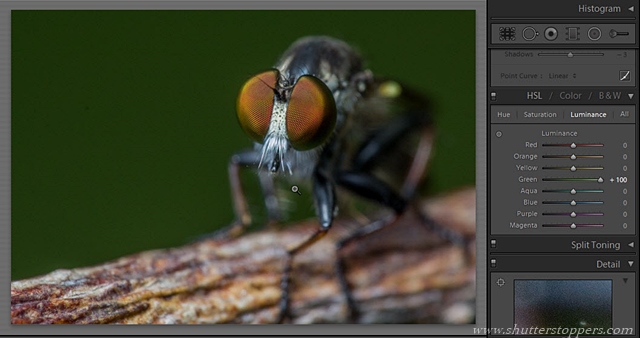
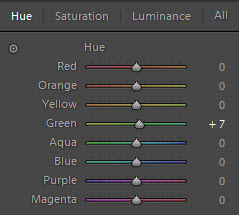
In the next step, I increased the luminance of the green. This will increase the brightness of the green making it less dull. Also, since there is a yellow cast on the green background (or, in other words, the green is not exactly green), I changed the hue of the green in the hue panel.
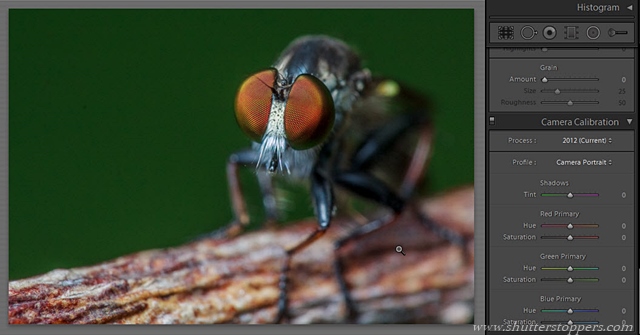
Step 4: Changed the picture style to Camera Portrait
I was checking various picture profiles (under the camera calibration panel) to see which one suits the image. Camera portrait looked more vibrant. Moreover, the yellow color cast was gone.
Making selective adjustments
There is still a problem. The background is underexposed. Usually, what people do is increase the exposure or open up the shadows (since the background pixels are in the shadow regions) in the basic panel. But, since the adjustments in the basic panel affect the image globally, the properly exposed regions on the image will become over exposed. So if I want to make adjustments on just the background, I have to do it selectively. If I were using the earlier version of lightroom I had to do it with the adjustment brush which is time-consuming.
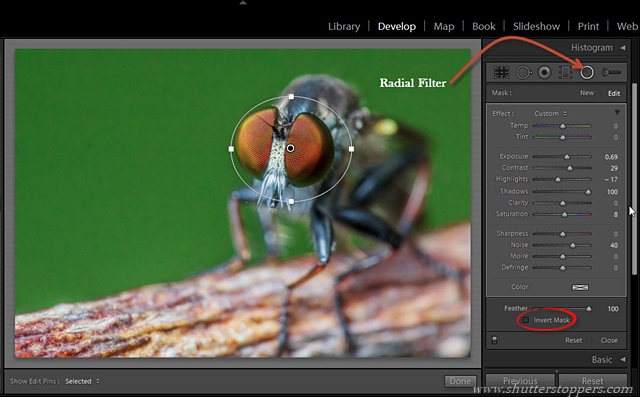
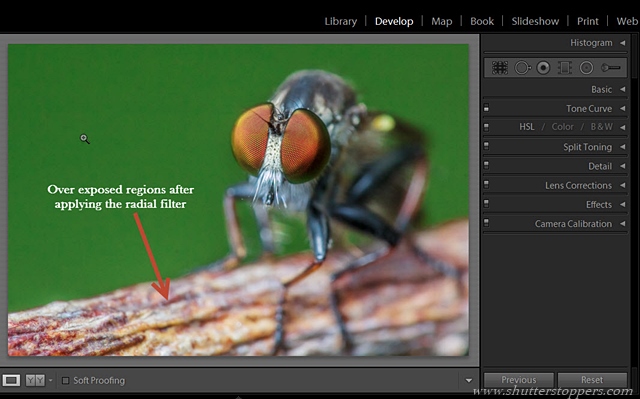
But in lightroom 5 beta, a radial filter saves you a lot of time on this. So I added a radial filter on the insect’s face. By default, whatever changes you make in the radial filter panel, the effects are applied on the area where the radial filter is added. I don’t want that. So in order to apply the adjustments outside the selected area, I unchecked the invert mask option. Now the adjustments are applied to the area outside the radial filter (see the image below)
Step 5: Added first radial filter to fix the underexposed background
You can check the radial filter panel to see what adjustments I made to fix the background. As you can see, it is not just about increasing the exposure or opening up the shadows. I will explain about each adjustments one by one:
- Exposure: I increased it to increase exposure on the background
- Contrast: When you increase just the exposure, it makes the image looks flat. So I increased contrast.
- Highlights: I decreased the highlights to preserve the colors, and to avoid blowing out the highlights on the wood.
- Shadows: As I mentioned before, the background was in shadow regions. So I opened up the shadows and mapped it to a higher level.
- Saturation: I slightly increased it since the green was washed out after I made the exposure adjustment.
- Noise: Since I opened up the shadows, the noise was increased in the background. So I removed the noise by moving the noise slider to the right.
Step 6: Used adjustment brush to fix over exposed regions
Okay. Now the image looks better now. NOTE: Please do not follow the same adjustments I did here. The adjustments vary from images to images. I explained it to give you an idea how you should make the adjustments.
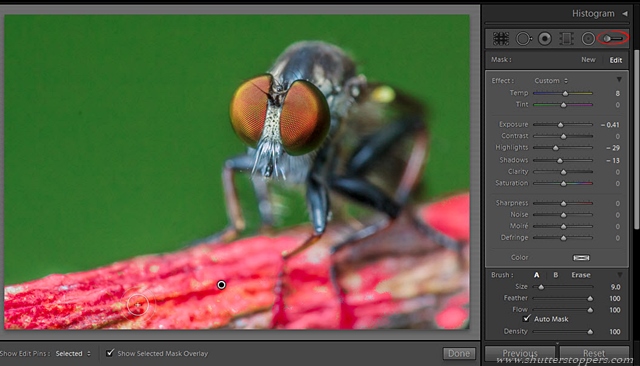
Now the insect, and the background looks good. Next I made adjustments on the area where the insect is sitting. It is slightly over exposed. I couldn’t apply the radial filter. So I used the adjustment brush to bring down the exposure.
The red region shows where I applied the adjustment brush. I checked the auto mask option so that brush won’t ‘spread’ to other regions.
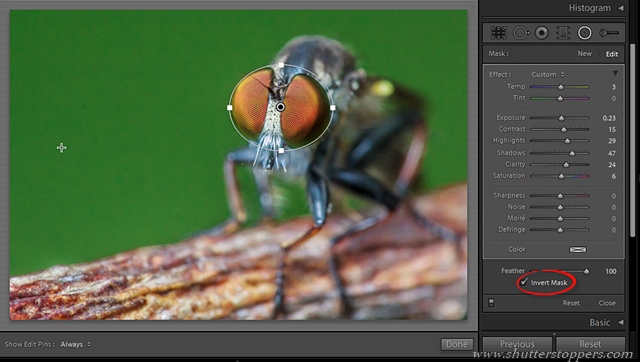
Step 7: Added second radial filter to make adjustments on the subject’s face
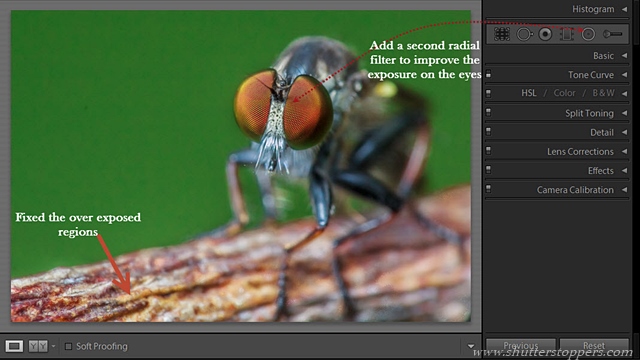
Next adjustment I did was on the subject’s face. As you can see, it is slightly under exposed. So I added a radial filter on its face. This time, I checked the invert mask option. So the effects were applied on the radial filter area.
Final adjustments
I am done with the selective adjustments on the image (I ignored the shadow regions on the left side of the insect because I think it adds drama and contrast to the image)
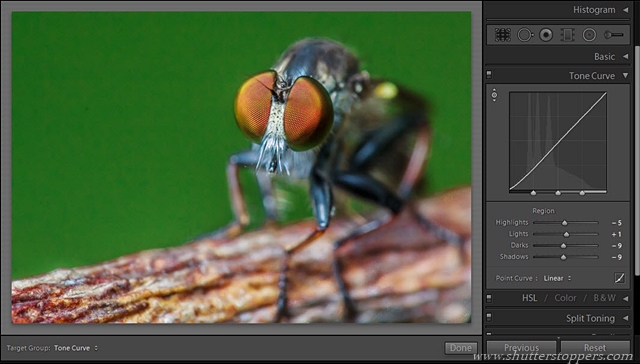
Next, I improved the tonality of the image by making some adjustments in the tone curve. I love the tone curve since it gives me good control over the contrast adjustments.
Step 8: Increased contrast using tone curve
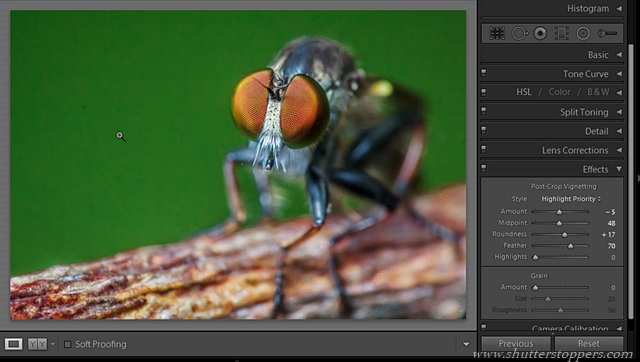
Step 9: Added Vignette
Next, I added some vignette so that the subject is highlighted, and makes it stand out (check the image)
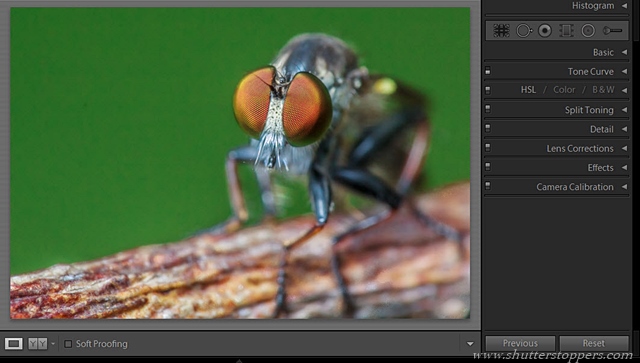
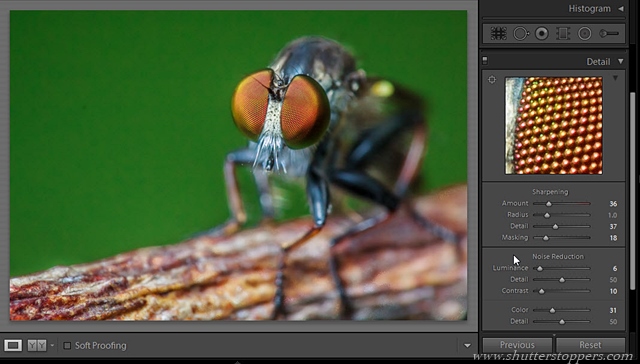
Step 10: Increased sharpness and improved detail
I moved to the detail panel where I removed some noise and increased sharpness a little bit.
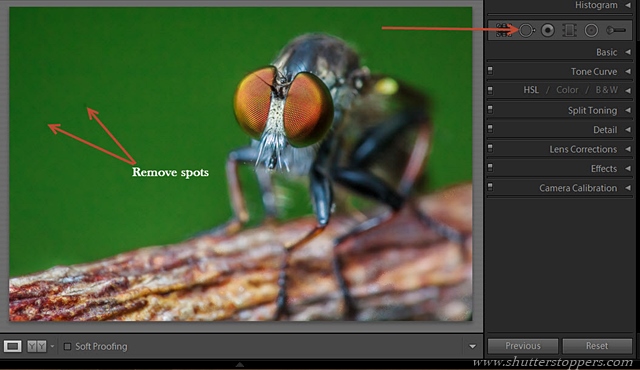
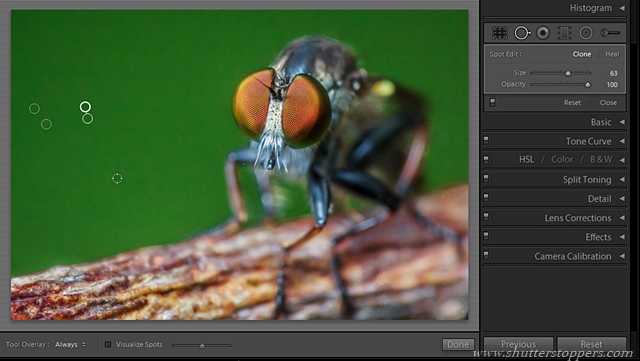
Step 11: Used Spot removal tool
When you increase the sharpness and contrast of an image and if there are any dust particles on your camera’s sensor, they appear as dark spots on the image. I used the spot removal tool and removed some of these spots.
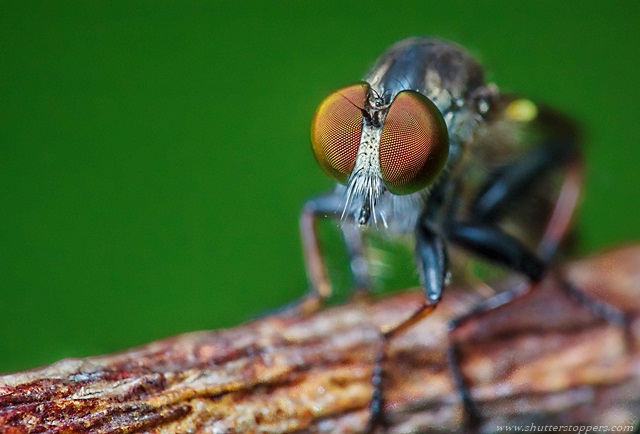
That’s it! The image is 98% completed. As you can see, it has some noise on the background. I used photoshop to ‘clean’ the image (the background is not smooth). But, the main fixing was done in lightroom 5 beta.
Final result after adding dust and scratches filter in photoshop
I hope you might have got an idea how to use the above mentioned new features of Lightoom 5 beta. Please note that this is just my workflow. Feel free to suggest me any modifications or improvements.




Hmm it seems like your website ate my first comment (it was extremely long) so I guess
I’ll just sum it up what I wrote and say, I’m thoroughly enjoying your blog.
I as well am an aspiring blog blogger but I’m still new to everything. Do you have any tips for rookie blog writers? I’d certainly
appreciate it.